|
|||||||||||||||||||||||||||||||||||||||||||||||||||||||||||||||||||||||||||||||||||||||||||||||||||||||||||||||||||||||||||||||||||||||||||||||||||||||||||||||||||||||||||||||||||

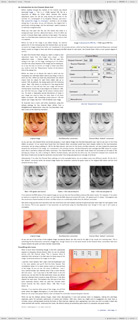
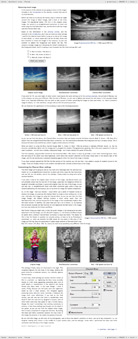
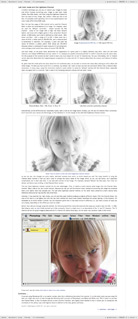
Black and white: part oneWith the advent of digital cameras, black and white photography has changed. Now, rather than loading a black and white film into your camera, you can either select to shoot in black and white mode (if your camera has one) or convert the image to black and white during post-production. There are a variety of ways of doing this within Photoshop, the simplest of which are the Desaturate command and the Hue/Saturation tool. Both of these methods convert an image to black and white based on an average of the RGB values of the individual pixels, and both can often only produce average results. In this tutorial we will be discussing three further methods of creating black and white images. The first uses the Channel Mixer tool, which offers a much greater degree of control over the appearance of the final image, and the second – using Lab Color mode and the Lightness channel – is a great technique for producing black and white portraits. The third method discusses the ‘Black and White’ tool (introduced with Photoshop CS3). The topics covered in this tutorial include:
This tutorial contains 5585 words, 56 illustrative images and screen grabs, and has received 17 comments. Photoshop files included with this tutorial
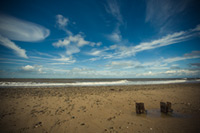
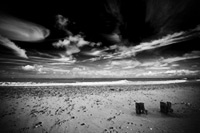
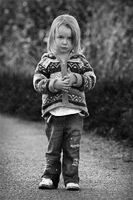
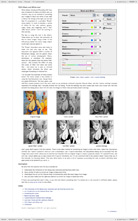
Each of our tutorials is based around a series of Photoshop files, at the resolution originally posted on chromasia, and each contains all the original adjustment layers I used to create the final image. The ones that are included in this tutorial, and a brief description of how each one will be used, are listed below – the ‘before’ version on the left, the ‘after’ version on the right. Each of these files can be downloaded after you subscribe.
What our subscribers have said about this tutorial
Content overview (the rollover graphics and embedded videos are not illustrated)
How to subscribe
Further information
To find out more about our other individual tutorials please click any of the following images. Alternatively, you can visit our main tutorials page for further information on: our annual subscriptions; our forthcoming issues; and our current members’s offers. You can also read through our sample tutorial on Tonal Range and the Curves tool.
David J. Nightingale © 2003–18 • all rights reserved
|
↓ David
↓ Libby
↓ Get the Latest News


software links
 Our annual subscribers and lifetime members can obtain a 15% discount on any of the Topaz Labs Photoshop plugins or plugin bundles.
 Our annual subscribers and lifetime members can obtain a 15% discount on Photomatix Pro.
training partners   Included above are links to a number of our training partners that we unreservedly recommend.
| ||||||||||||||||||||||||||||||||||||||||||||||||||||||||||||||||||||||||||||||||||||||||||||||||||||||||||||||||||||||||||||||||||||||||||||||||||||||||||||||||||||||||||||||||||